Interacting with SAP
The system is designed to be intuitive enough that you shouldn't need extensive documentation. Just describe what you want in plain language and the system will figure out the rest.
A good starting point is to ask:
"What can I do in the SAP system?"
The system will tell you what data and services are available.
Asking questions
Type your question in natural language. The system automatically selects the right SAP tools, builds the query, and fetches the data.
Here are some things you can try:
- "How many products are in the system?"
- "Show me the 10 latest sales orders"
- "What is the latest sales order?"
- "Show me sales order
[ID]with all its line items" - "Create a new business partner called Acme Corp"
- "Change the delivery date on sales order
[ID]to March 15"
Don't worry about supplying all the details yourself. If the system can't figure it out, it will ask you for the missing information.
Interactive tables
Results are displayed in interactive tables that you can search, sort, and visualize:
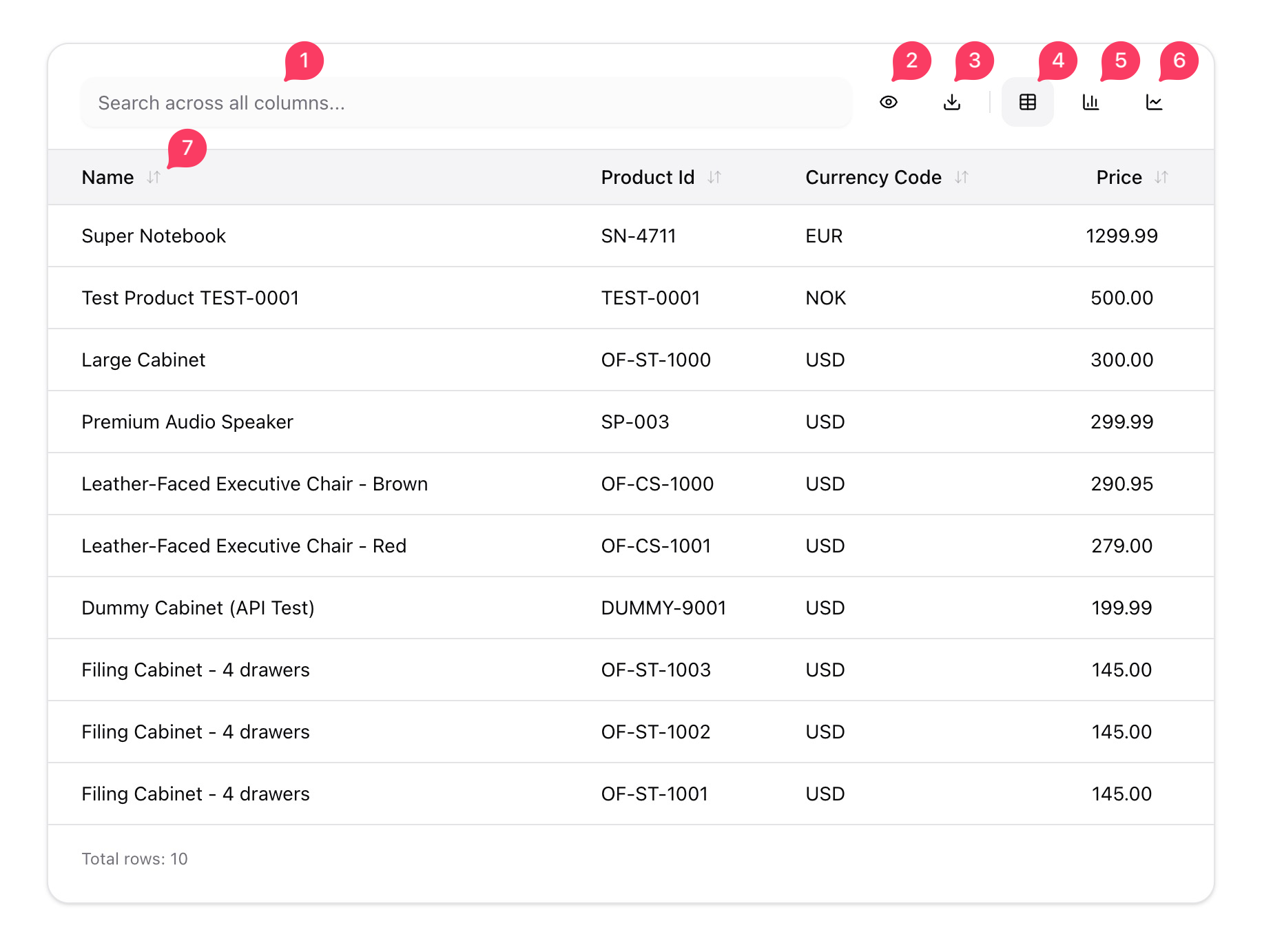
The numbered labels in the image correspond to the following functionality:
- Search: Filter rows by searching across all columns.
- Toggle columns: Choose which columns are visible.
- Download: Export the data.
- Table view: Display data as a table (default).
- Bar chart: Visualize data as a bar chart.
- Line chart: Visualize data as a line chart.
- Sort: Click a column header to sort by that column.
Be specific to save costs
Every response uses tokens, and large result sets use a lot of them. Being specific about what you need keeps things fast and cost-effective. The system will generally guide you in the right direction, but it helps to be precise from the start.
| Instead of | Try |
|---|---|
| "Show me all sales orders" | "Show me the 10 latest sales orders" |
| "List all business partners" | "Find business partners in Norway" |
| "Get all products" | "Show me products with price above 100" |
Tips
- Correct the system: If the system gets something wrong, correct it in the same conversation (e.g. "That's not right, I meant...").
- Start fresh often: Start a new chat when switching topics or if a conversation gets too far off track. Shorter chats use fewer tokens and are more cost-effective.
- Use Manual mode for writes: Switch to Manual tool mode when creating or updating data so you can review each action before it happens.