The chat interface
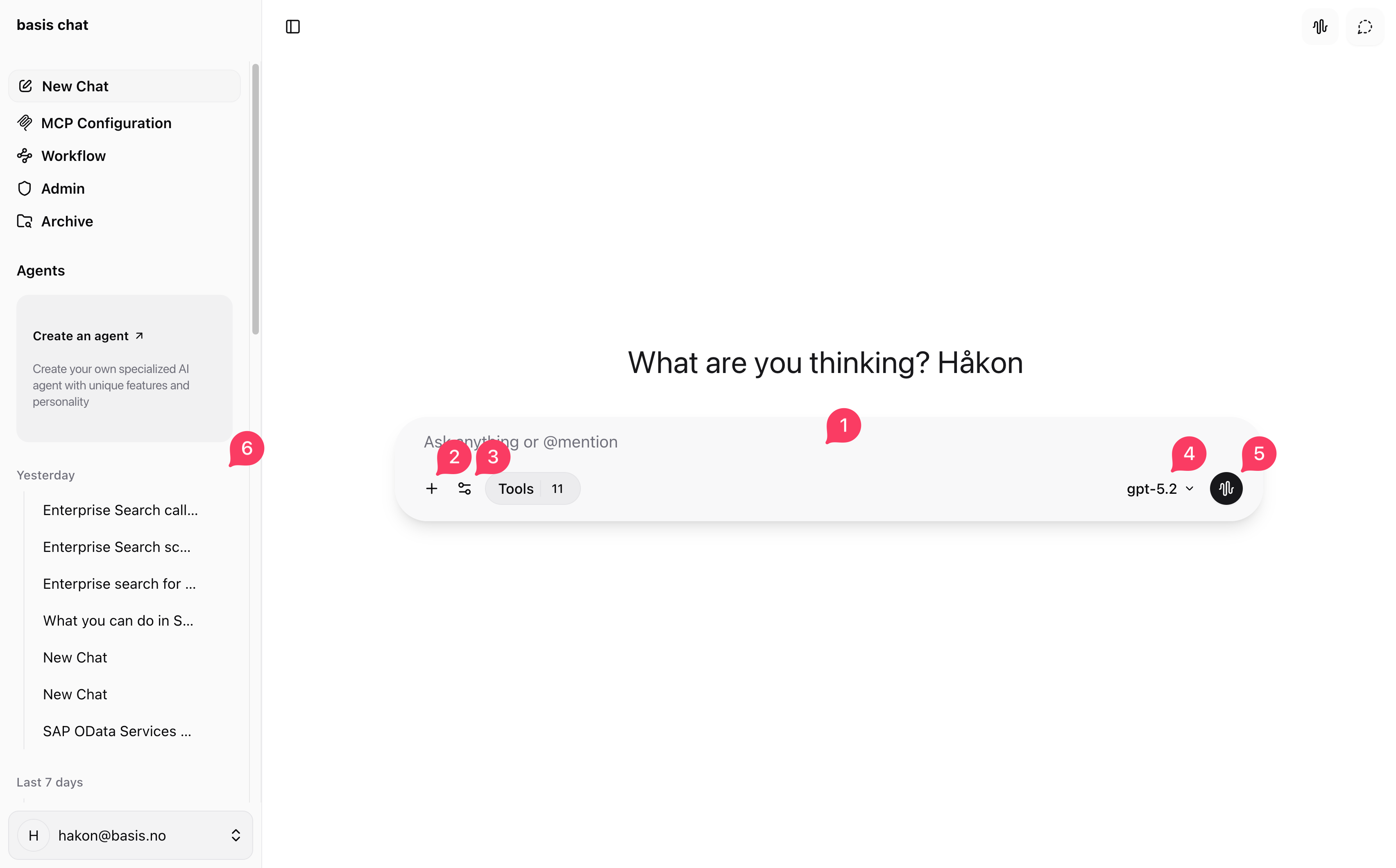
The chat interface is where you interact with the system. The numbered labels in the image correspond to the following sections:
- Input: Type your questions and requests here.
- File upload: Allows you to upload files.
- Tool mode: Toggle between the different tool modes.
- Model selector: Toggle between different AI models.
- Voice mode: Toggle voice mode. Allows you to speak with the system.
- Sidebar: Your chat history. Click any previous chat to continue it, or start a new one.
Starting a new chat
To start a new chat, type your request in the input and press Enter.
Tool modes
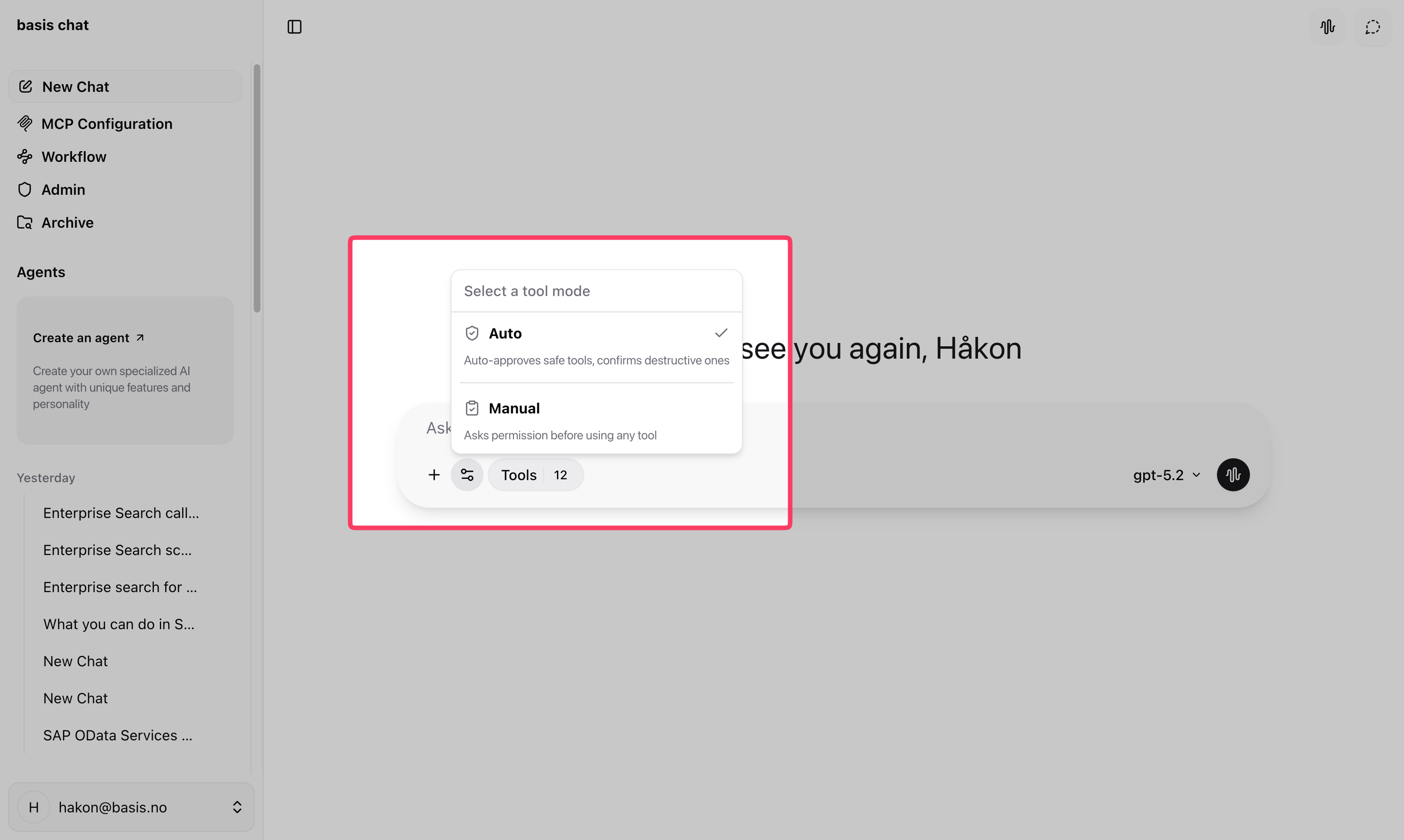
Use the tool mode selector next to the input to control how the system uses SAP tools:
- Auto (default): Safe tools (e.g. reading data) run automatically. Destructive tools (e.g. deleting data) require your confirmation first.
- Manual: The system asks for your confirmation before using any tool.
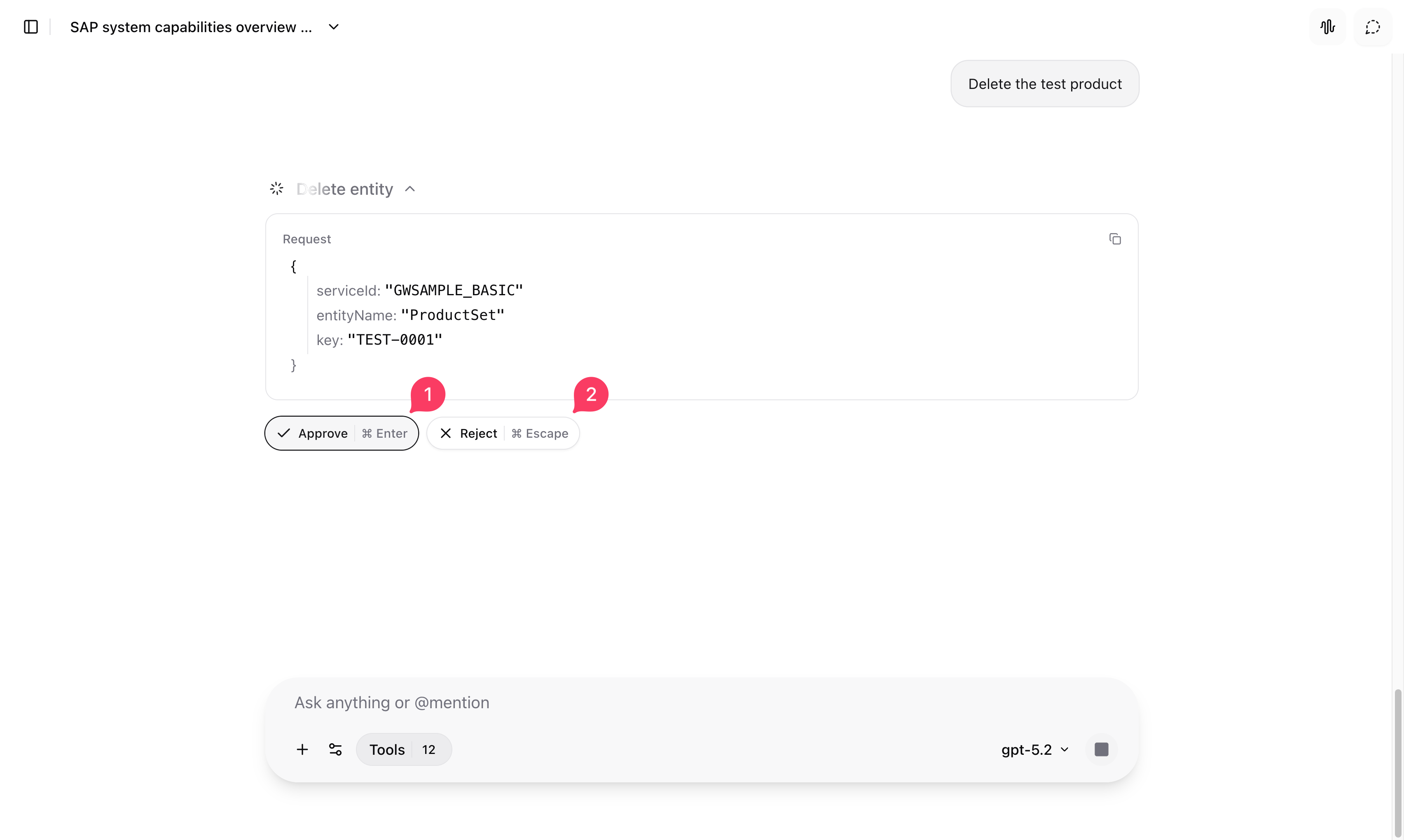
When the system asks for permissions to run a tool, either click Approve (1) or Reject (2).
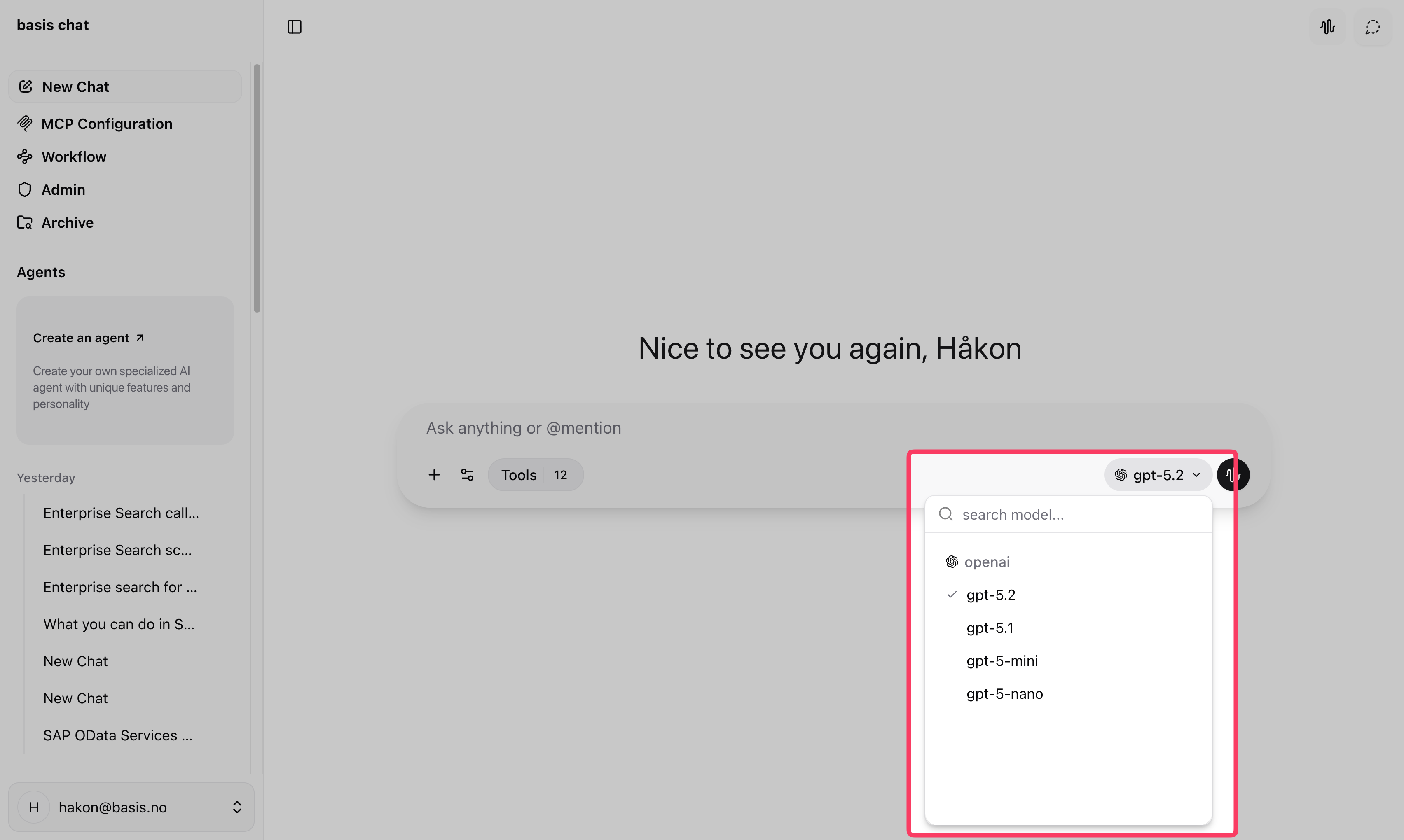
Selecting AI models
Use the model selector to pick which AI model to use. If you're unsure, leave it on the default.
Voice mode
Experimental
Voice mode is in an experimental phase and may change in future updates. Based on our testing, the normal text mode is more reliable. Voice mode does not work well in Norwegian.
Click the voice mode button (5) to start a real-time voice conversation with the system. You can speak naturally and the AI will respond with speech. Voice mode supports the same tools as text chat, so the system can query and modify SAP data based on your spoken requests.
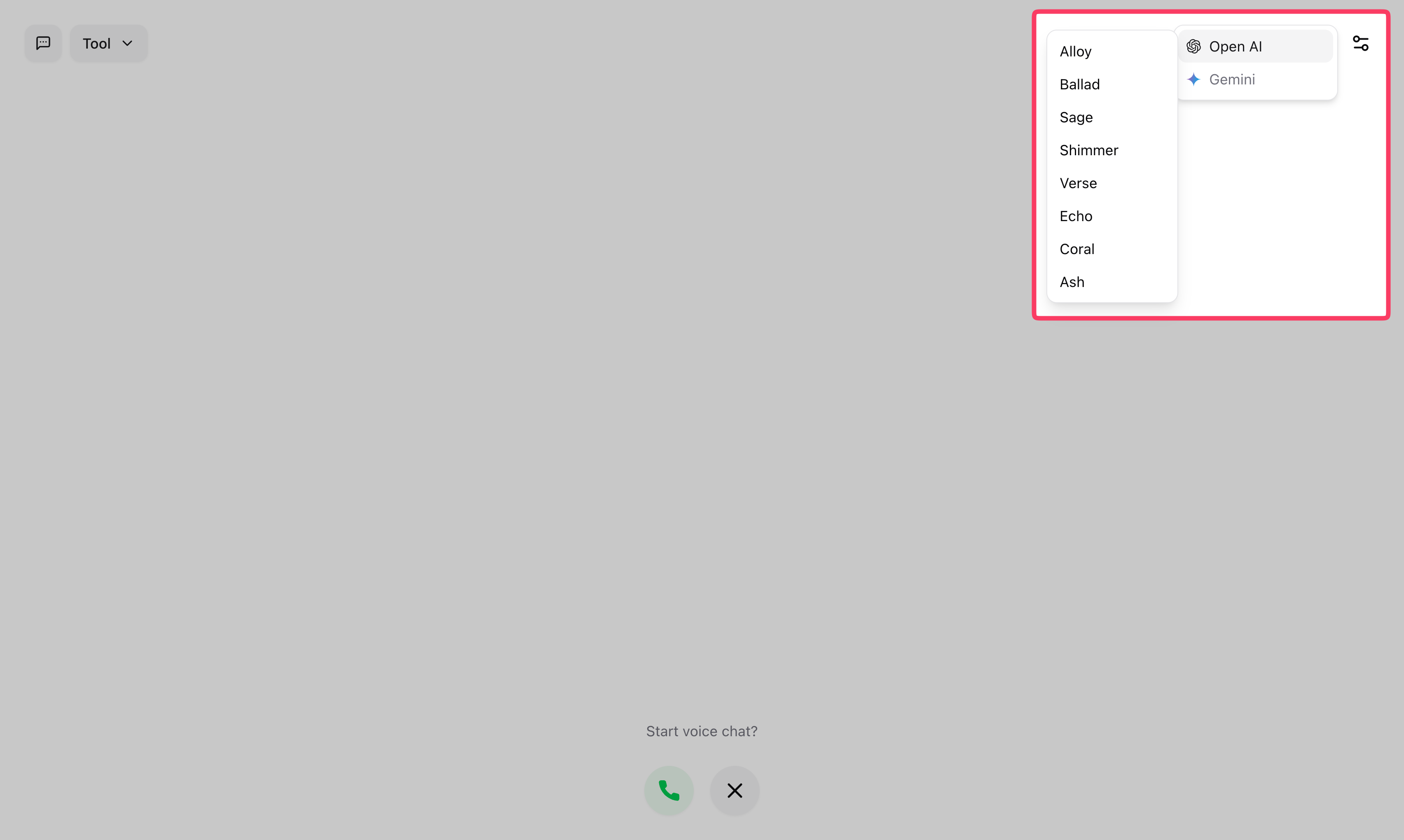
You can choose between different voice personas in the voice settings menu.
Sharing a chat
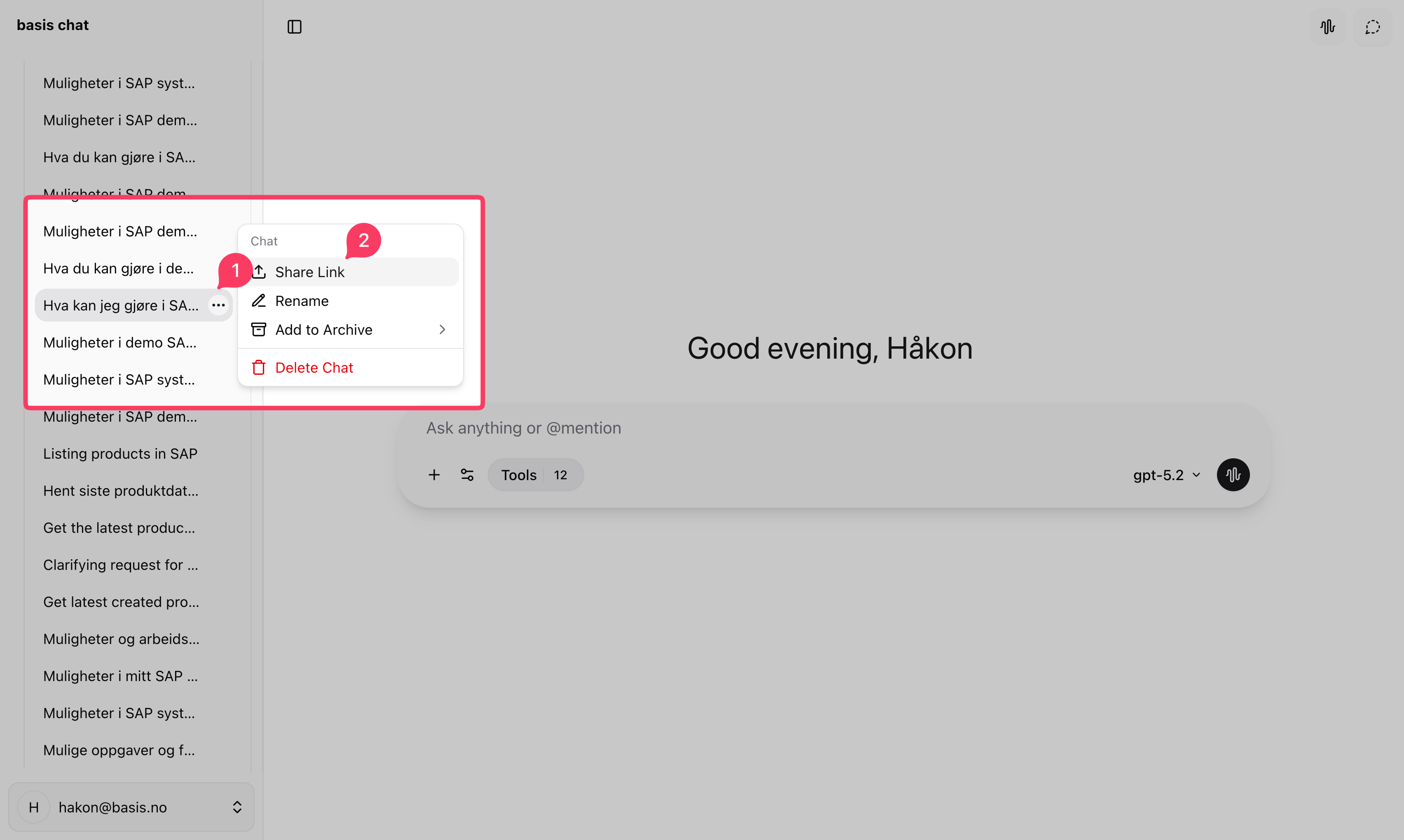
You can share any conversation with a public link:
- Click the three-dot menu (1) in the sidebar for the chat you want to share.
- Click Share link (2).
- Click Create Link in the dialog that appears.
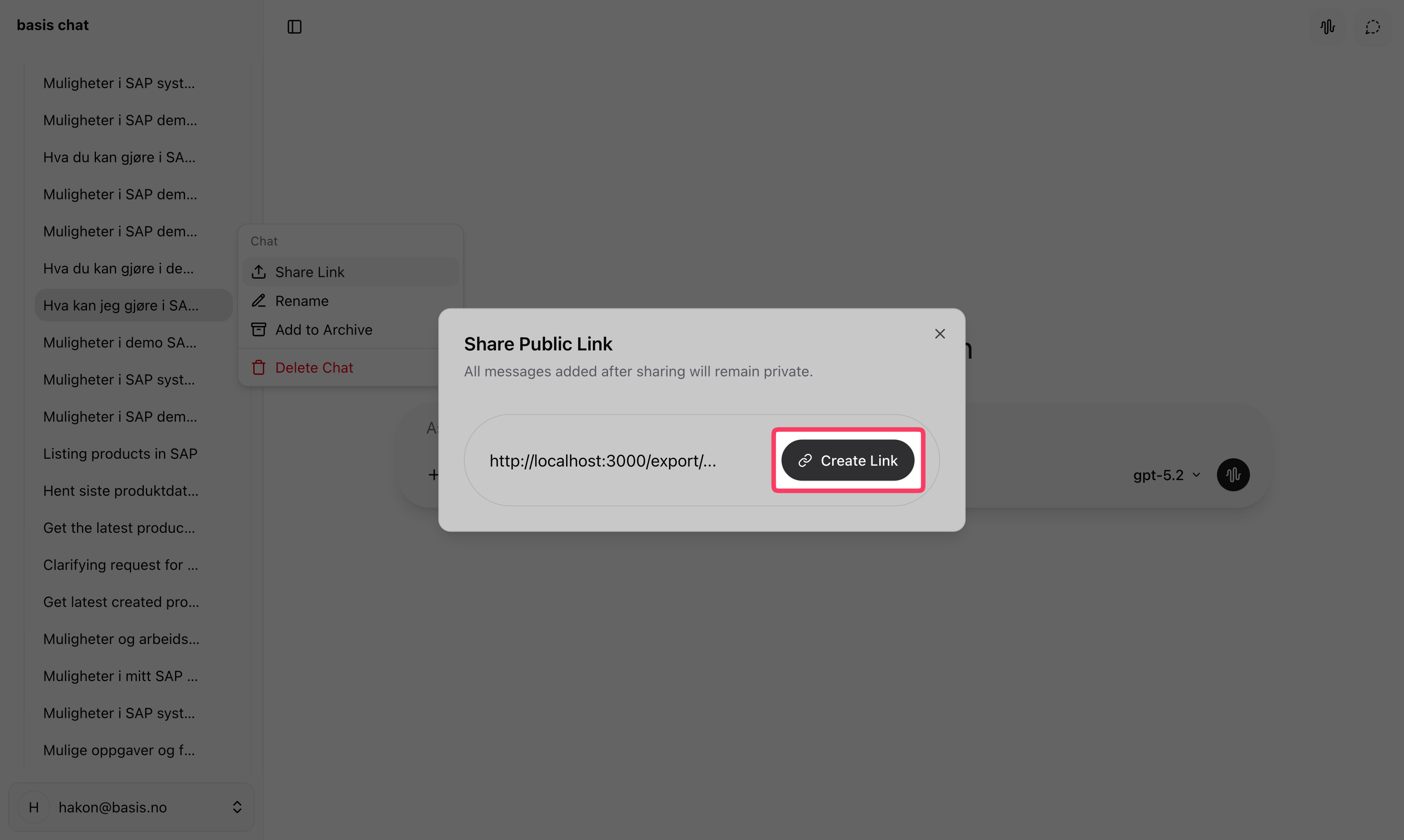
- The link is copied to your clipboard. Send it to anyone; they can view the conversation without logging in.
Note
Shared links include all messages and SAP data visible in the conversation. Make sure the chat doesn't contain sensitive information before sharing.
Changing the language
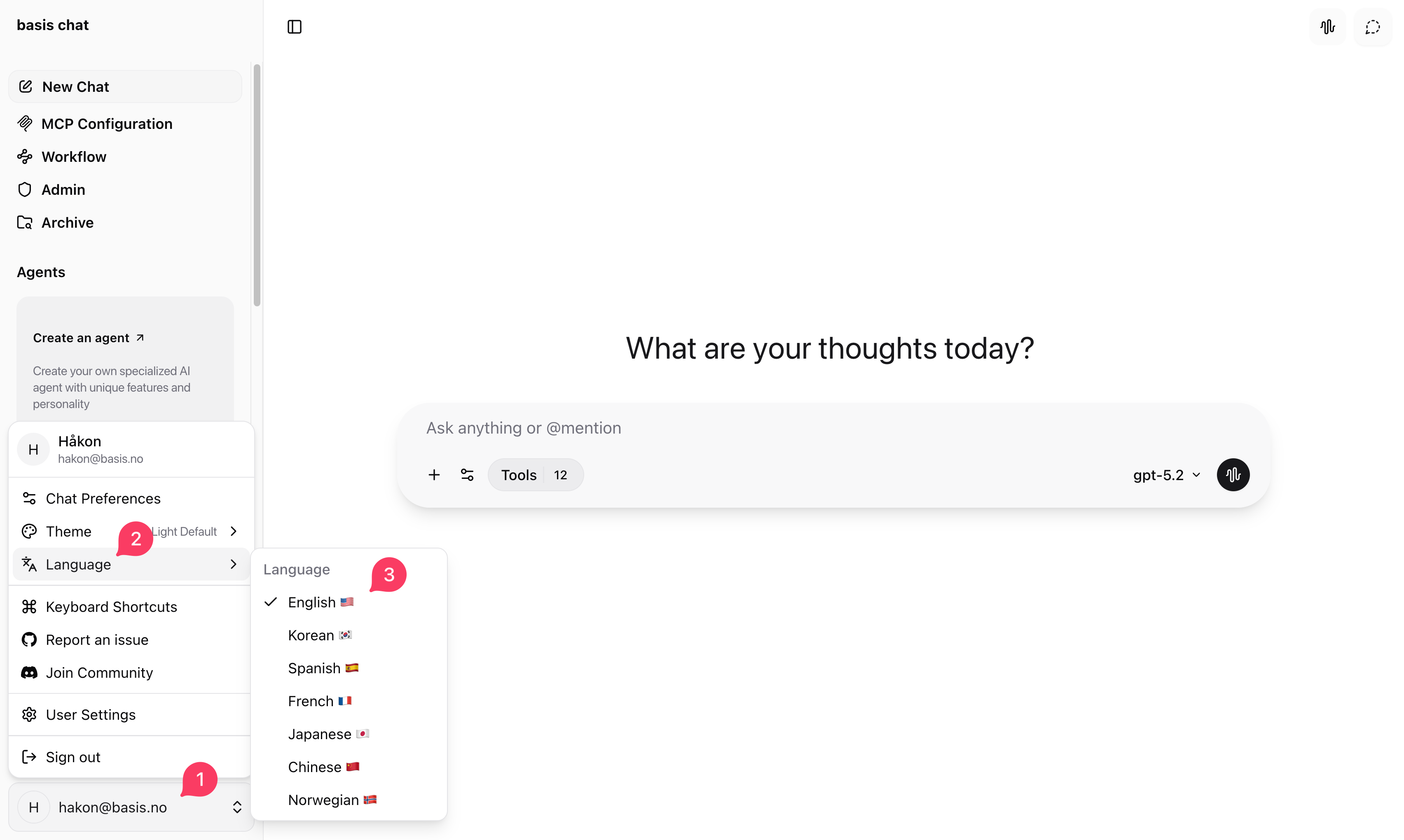
To switch the interface language:
- Click your user icon (1).
- Click Language (2).
- Select your preferred language (3).
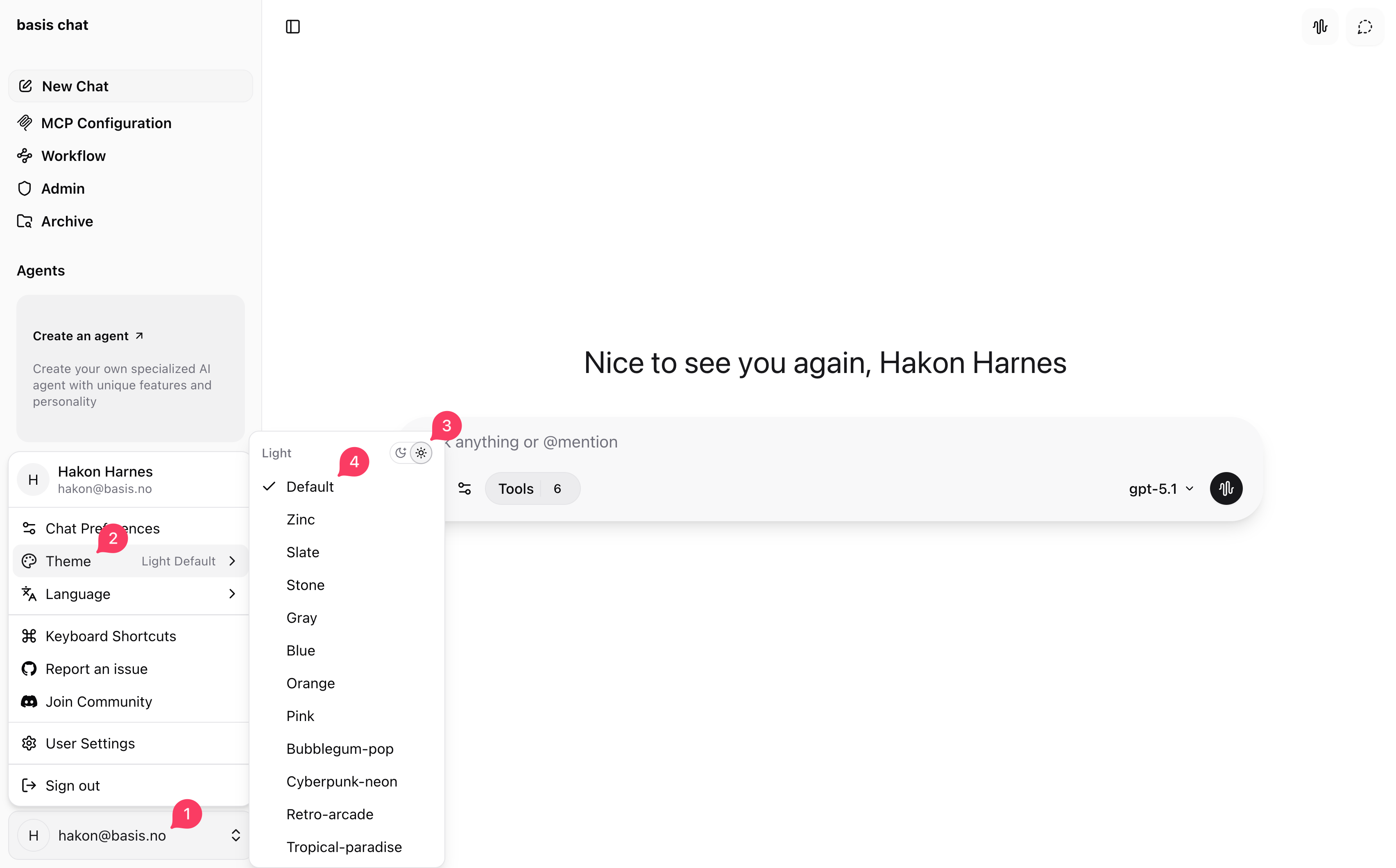
Changing the theme
To change the interface theme:
- Click your user icon (1).
- Click Theme (2).
- Select Dark or Light (3).
- Select your preferred theme (4).
Changing your password
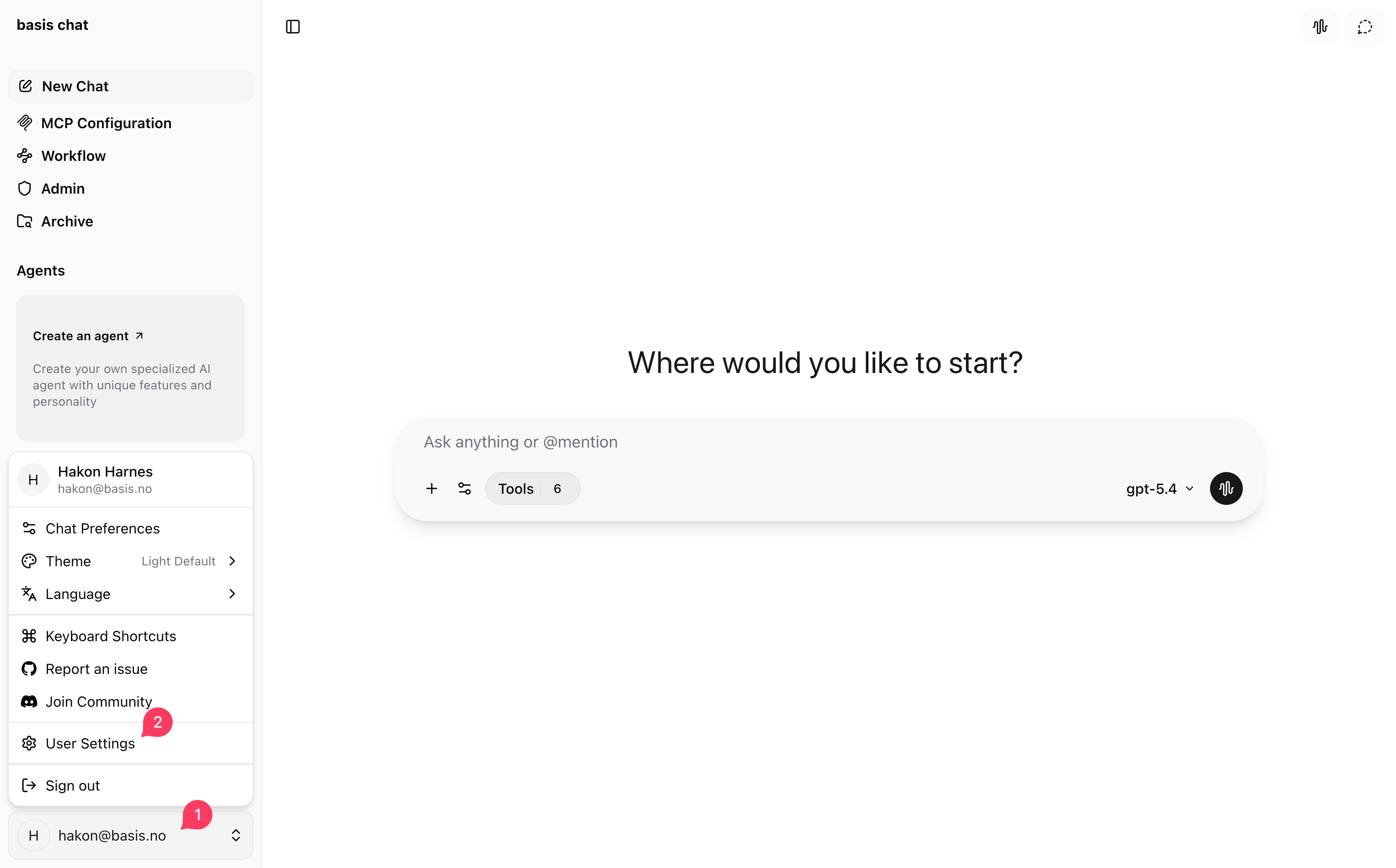
You can change your password from your user settings. This option is available for accounts that sign in with an email address and password. If your account only uses OAuth or single sign-on, password changes are managed by your identity provider instead.
- Click your user icon (1).
- Click User Settings (2).
- In Access and Account, find Security.
- Under Password Management, click Change Password.
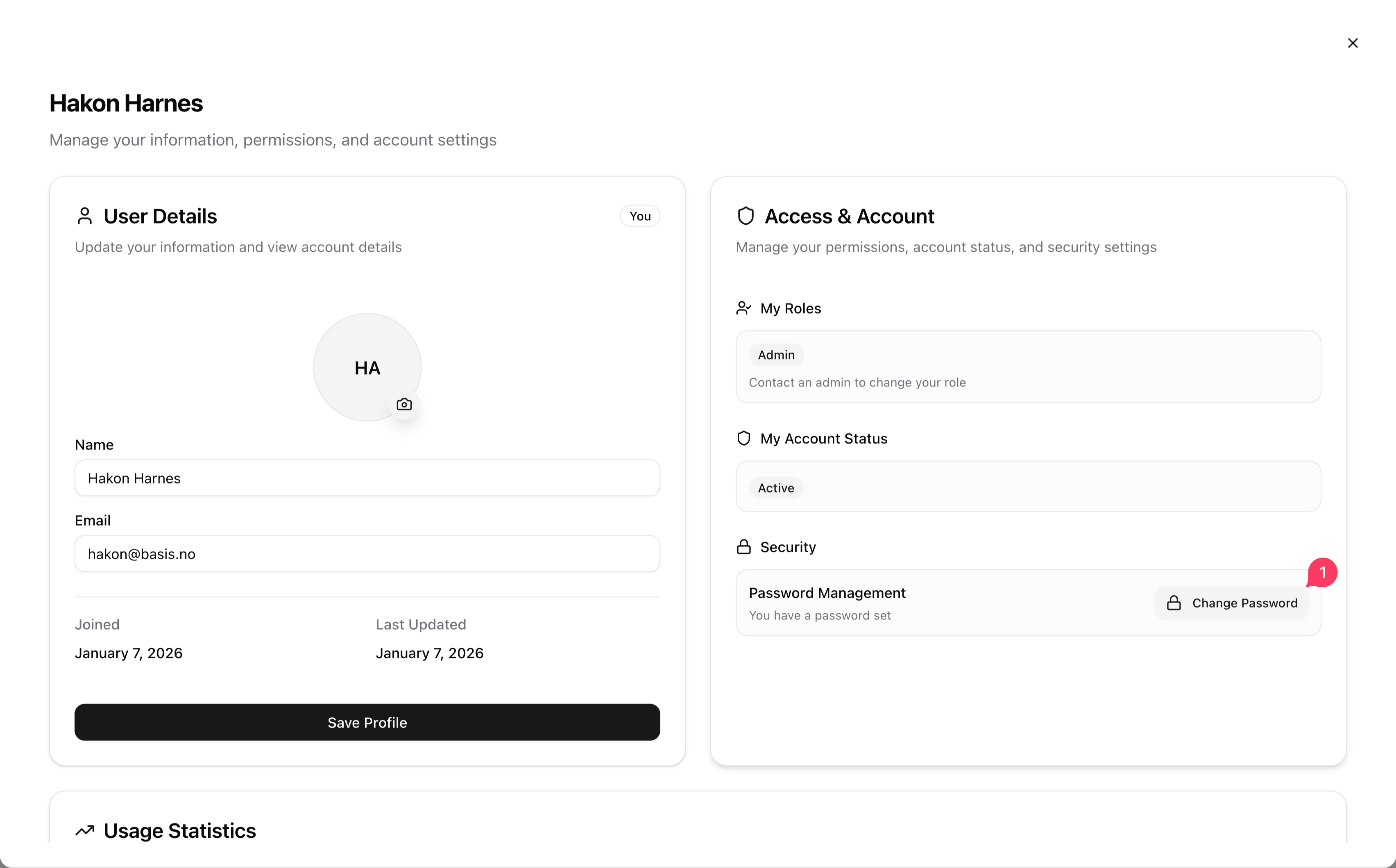
- Enter your current password, then enter and confirm your new password.
- Click Change Password.
Your new password must be 8-20 characters and contain at least one letter and one number.